
- Log into your Google AdSense account.
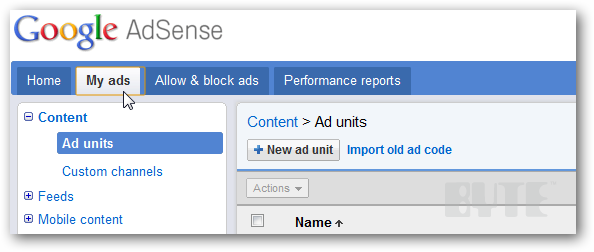
- At the top, click on the option that says My Ads.
- Click the button that says New Ad Unit.
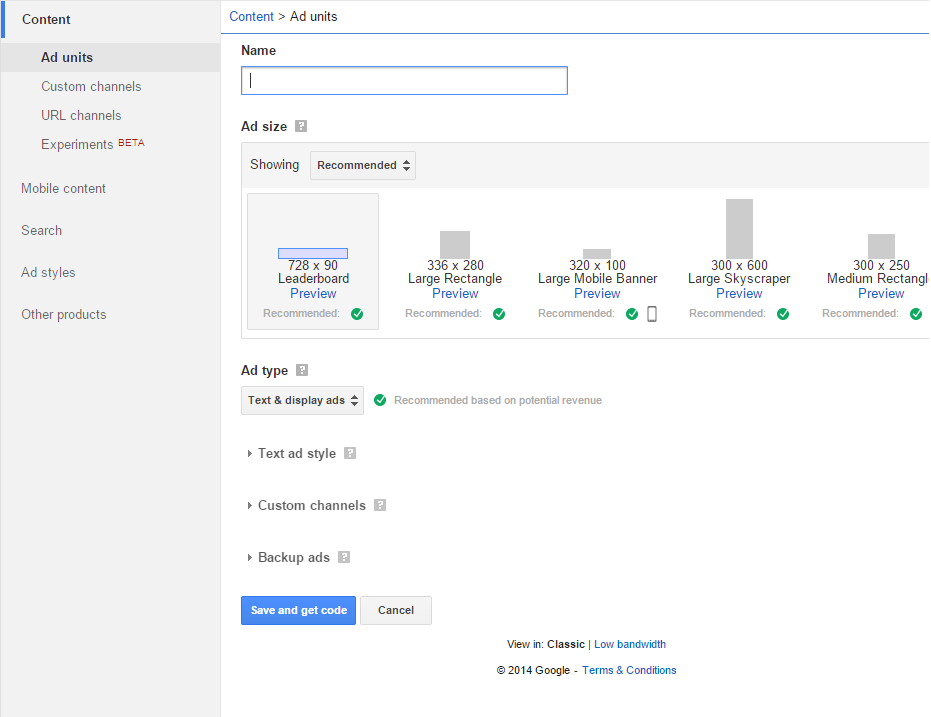
- You’ll see a setup area where you can name your ad. This is just for your reference. Let’s first create the horizontal ad that runs right above or below your header. You can name it Header.
- Choose the option that says Responsive. This one and the others in the box are what Google recommends. As a beginner, stick with them. Otherwise, you can choose in the drop down and create custom sizes or text link ads, etc.
- All the other options you can leave as the default.
- Click the SAVE & GET CODE button and you’ll see a window pop up with Javascript in it. Select and copy that code.
How to set or Add Google AdSense adds to your Website Now we’re going to place that code on your site. Once we’re done, you’ll go back to Google AdSense and create two other ad units. You might want to choose the large sidebar type ad for your sidebar, and a smaller horizontal ad for your content. You can always just use the one responsive ad code as well and have that placed in all three areas since it’s designed to readjust depending on the screen size. Create it as three separate ad units (and name them differently) though so you can track the performance of each one.
How to set or Add Google AdSense adds to your Website or follow these steps
1 – Get Your AdSense Code
By creating a new ad unit with AdSense, you will be able to place advertisements on your website immediately. You don’t need to worry about understanding the code either; you can use a simple graphical editor to change the way your ads will look once they’re displayed on your site.
- Log into your Google AdSense account once you have been accepted, and click on the “My ads” menu item at the top of the page. Click the “+ New ad unit” button to continue.
- Enter any name you want for the ad unit, and choose your preferred ad size and layout from among the thumbnail previews. If you plan to display the ads in the sidebar of your WordPress blog, as most people do, you’ll probably want to choose either the “Large Skyscraper” or “Medium Rectangle” option.
- Click on the “Text ad style” button to customize the colour scheme and formatting for your ads.
- Click “Save and get code” once you have finished customizing your ads. Wait for a few moments for the code to appear before selecting it and copying it to the clipboard using the CTRL + C keyboard shortcut.
2 – Install the Code in WordPress
Although you can paste the code in just about any page element of your WordPress blog, by far the most popular option is to place it in a sidebar widget so that your ads appear in the right-hand side of your website beside your posts.
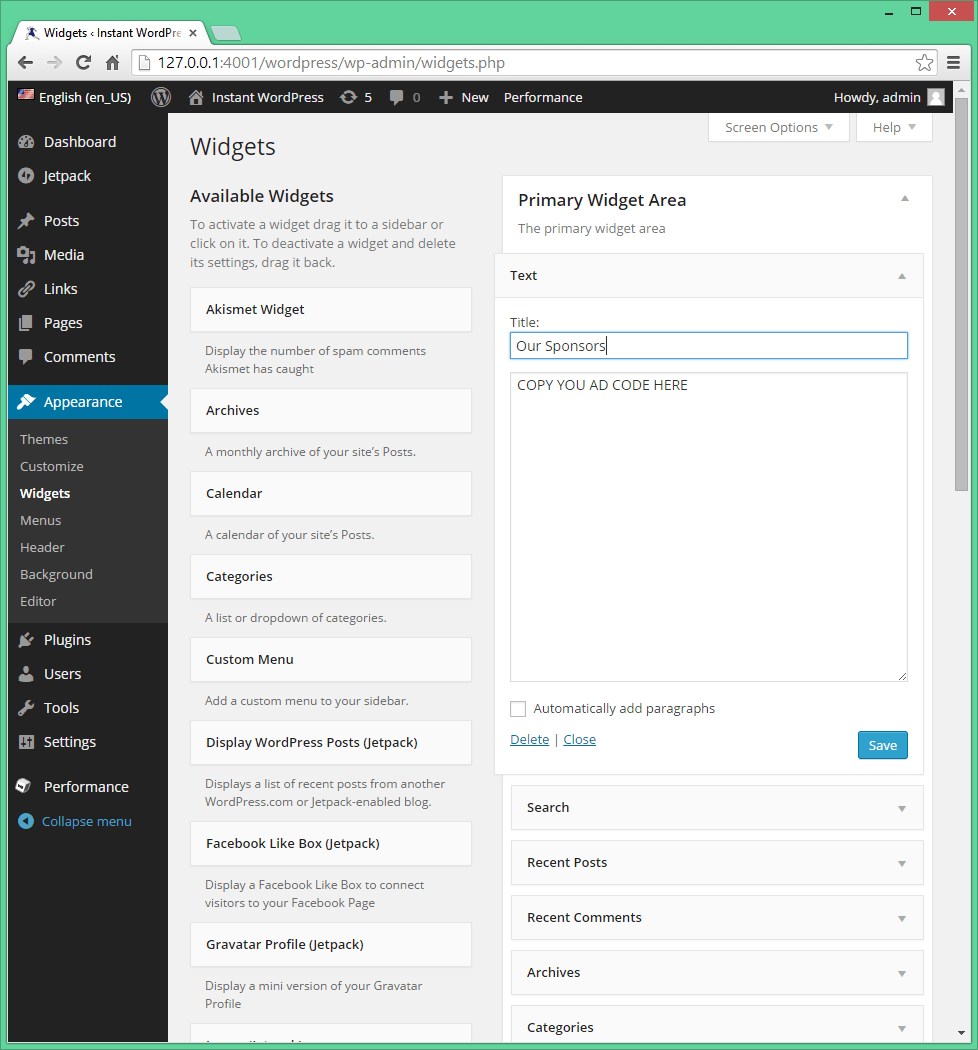
- Navigate to “Appearance > Widgets” in your WordPress administrator dashboard to open the widgets section.
- Scroll down the list of available widgets in the left-side column to find the “Text” widget, and drag it over to the preferred widget area in the right-side column. The number of available widget areas will vary depending on your theme, though most people use the Primary Widget Area to display their ads in the sidebar.
- Click on the activated Text widget and enter a title. Always choose a neutral title, as per Google’s terms of uses; “Our Sponsors” tends to work best. The title should never try to directly encourage people to click on the ads.
- Paste the AdSense code into the text box, and click “Save”. Context-relevant ads, along with the formatting and colour theme you selected previously, will appear immediately on your blog.
Note that you can have multiple instances of the text widget displayed in one or more widget areas of your WordPress site, allowing you to display multiple ads.
How to set or Add Google AdSense adds to your Website Or follow this steps
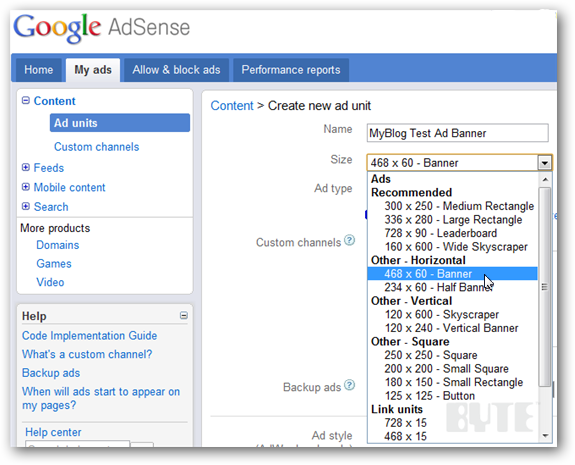
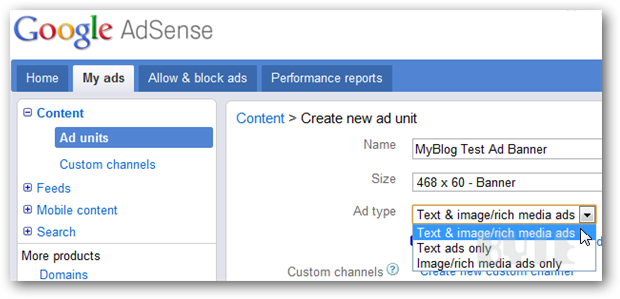
Type in a name for your advertisement. Note that each ad name should be unique. Use the Size pull-down menu to select one of the ad sizes.
Use the Ad type pull-down menu to select one of the three available types. The Text & image/rich media ads is the default type. Choosing this allows your ad to display either plain text or a graphical ad.
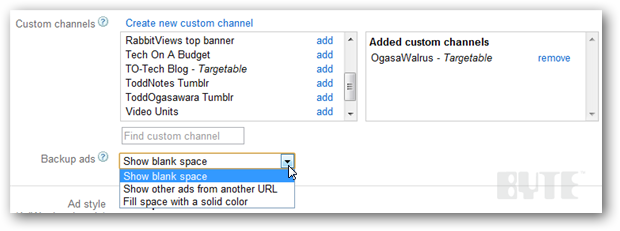
If you want to be able to track specific sections of your site (or a specific site if you have more than one), you can create custom channels.
Select one of the Backup ads. This determines what is displayed on your website if an appropriate ad becomes temporarily unavailable.
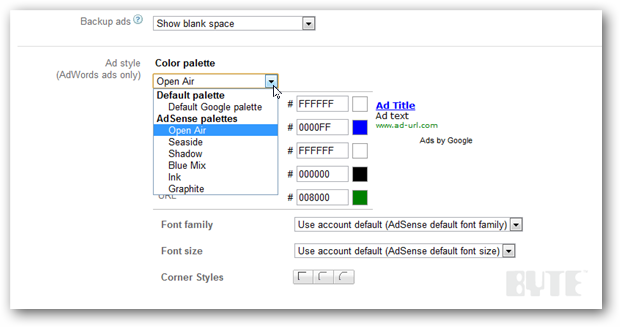
Select one of the color palettes for your ad. Google AdSense will display an example of how your ad will look–preview it to make an appropriate selection.
Choose a font family and ad box corner style. Hit Save and get code.
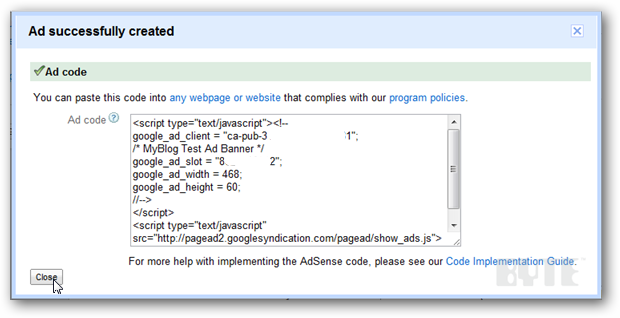
Now copy the Javascript code from the Ad code box and paste it into your website.