
How To Root Android Smartphone or tablet METHOD 1: Root Using Kingo Root Program
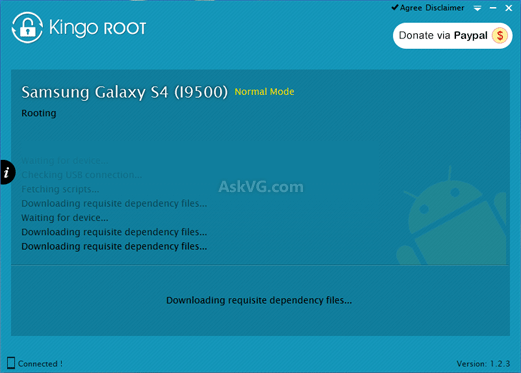
Its a free and easy to use program to root any Android device. I have tried it to root Samsung Galaxy S3 and S4 mobile phones and it worked without any problem.
1. First of all download the software using following link:
2. After installing the program, launch it and connect your Android device to your PC.
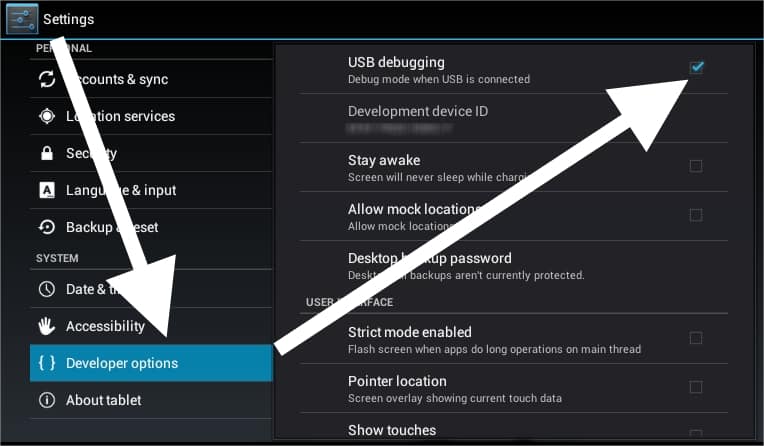
3. If required, enable “USB debugging” option using Developer Options in your Android device. If you can’t see Developer Options in your Android device, you’ll need to enable it as mentioned here.
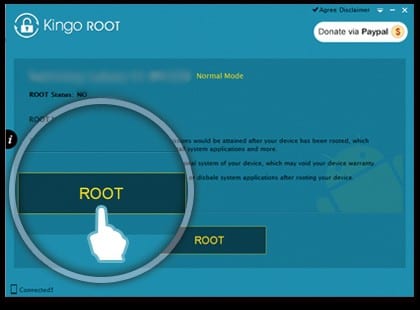
4. Once the program detects your Android device, click on “ROOT” button and it’ll start rooting your Android device.
It’ll take a few minutes and your device will be rooted without any problem.
METHOD 2: Root Using Mobogenie Program
Mobogenie is an all-in-one Android device management utility which allows you to install apps in one-click, backup your phone data, download ringtones, wallpapers and games to your device, etc.
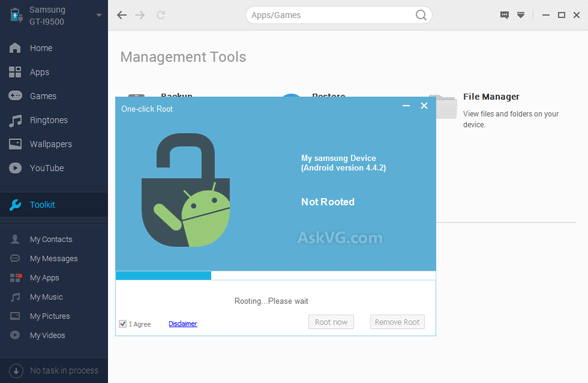
There is another cool feature present in this software which is 1-click rooting of Android devices. Mobogenie allows users to root their Android mobile phones easily and quickly.
You can root your Android device using Mobogenie with the help of following steps:
1. First download and install Mobogenie using following link:
Download Link: mobogenie.com
2. Launch the program and connect your Android device to your PC.
3. Again if required, enable “USB debugging” option present in Developer Options in your Android device. If you can’t find Developer Options, you can enable it as mentioned here.
4. Now click on “Toolkit” option present in the left-sidebar of the program and then click on 1-Click Root option and it’ll start rooting the device.
It’ll take a few minutes and your device will be rooted without any problem.
METHOD 3: Root Using Framaroot Application
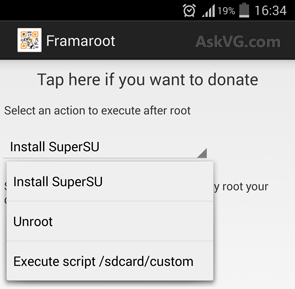
Framaroot is a mobile application which also allows many Android devices rooting. To use this app just follow these simple steps:
1. First download the app using following link:
2. Now copy the app’s APK file to your device and install the app in your Android mobile phone. Check out following tutorial to learn more:
[Tip] Install Apps Offline in Google Android Devices
3. Launch the app in your mobile phone and select “Install SuperSU” option.
It’ll root your Android device and restart the device to take effect.
METHOD 4: Root Using Towelroot Application
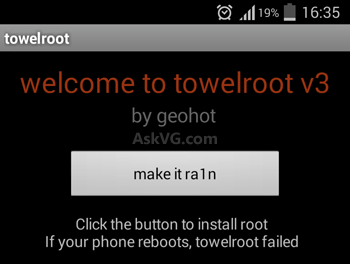
Towelroot is another mobile application to root Android mobile phones. Just follow these simple steps to root your Android device using Towelroot:
1. First of all download the app using following link:
PS: Right-click on the “λ” sign present in the middle of the download page and select “Save link as” or similar option to download the APK file on your PC.
2. Now copy the APK file to your Android device and install the app in your mobile phone.
3. Launch the app in your mobile phone and click on “make it rain” button.
It’ll take a few moments in rooting your Android device.
[TIP] Checking Root Status of Your Android Device
After rooting your Android device, you can check whether the device was successfully rooted or not using following steps:
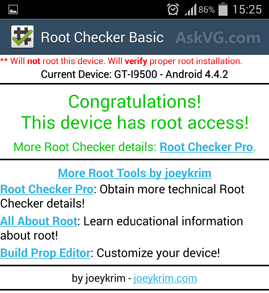
1. Download and install Root Checker app from Google Play Store.
2. Run the app and there you can check the root status.
NOTE: It might be possible that some rooting software or apps are not compatible with your Android mobile phone or tablet. In such cases, you should try the next available method to root your Android device.
Also you can do with this method.
Step 1: Kingo Android Root must be downloaded and installed in your PC/Laptop. CLICK here to Download Kingo Android Root.
Step 2: Enable USB debugging mode on your phone.
Step 3: Connect your Android Smartphone to the PC/Laptop using a USB Cable and Run Android root on your PC.
Step 4: After successfully pairing your Android smartphone with Laptop/PC, click Root option and hold yourselves back patiently while the Kingo Android Root whole job.
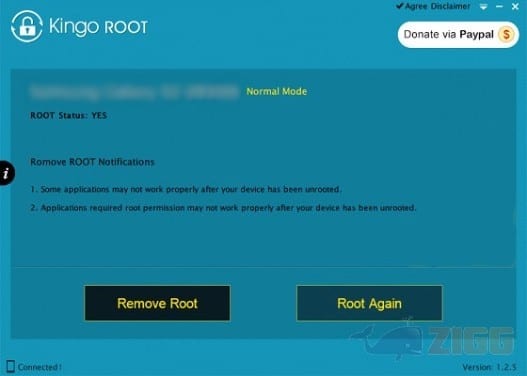
Step 5: Congratulations you Android smartphone has been rooted successfully and if you wish to revert the changes which were made to your Android smartphone then connect your smartphone again with the PC/Laptop repeating the prior process and click Remove Root option which would undo the changes.
How To Root Android Smartphone or tablet, How To Root Android Smartphone or tablet, How To Root Android Smartphone or tablet, How To Root Android Smartphone or tablet, How To Root Android Smartphone or tablet, How To Root Android Smartphone or tablet